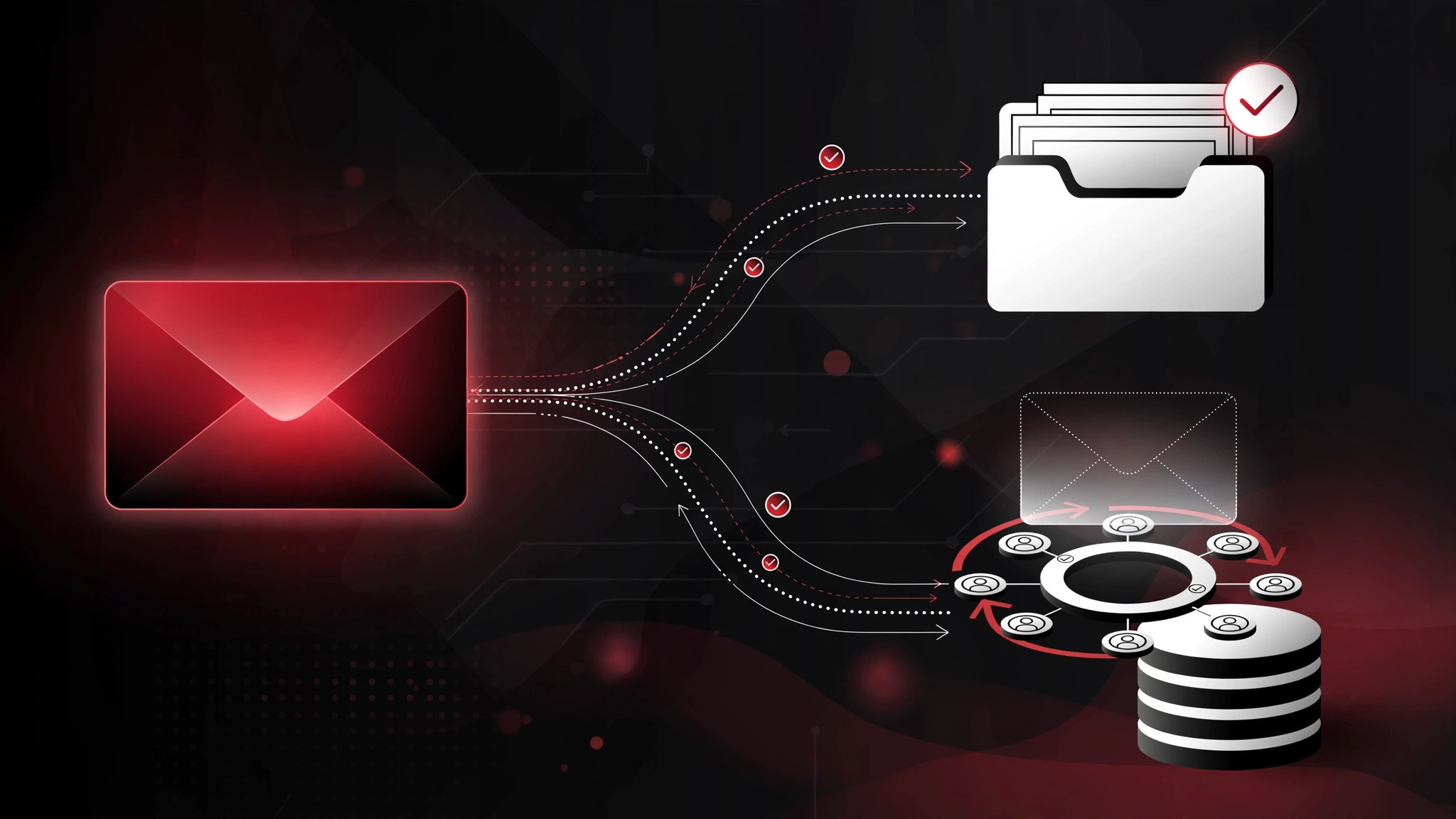
Here's a familiar CRM failure: your team sends dozens of client emails a day from Gmail, and none of them end up in the CRM. The deal timeline has gaps, nobody knows what was promised to whom, and when someone leaves, their entire email history walks out with them. Auto BCC fixes this at the source — every email you send is automatically copied to your CRM's dropbox address, so the record builds itself without anyone remembering to log anything.
Most modern CRMs (HubSpot, Pipedrive, Salesforce, Zoho and others) provide a personal BCC/dropbox email address for exactly this purpose. Gmail doesn't have a native auto-BCC setting, so you set it up with a small extension or filter workaround. This guide covers the reliable methods, the gotchas, and the compliance bits UK businesses need to get right.
Why auto BCC matters more than manual logging
Manual email logging fails for a simple behavioural reason: it relies on humans doing admin after the interesting part of the work is done. Reps log the big calls and forget the quick "yes, Thursday works" replies — which are often the messages that matter in a dispute. Auto BCC removes the human from the loop entirely. Every sent email lands in the CRM, attached to the right contact and deal, with zero effort and zero inconsistency.
The payoff shows up in three places. Pipeline visibility: managers see real activity, not reported activity. Continuity: when a rep leaves or goes on holiday, the full conversation history stays in the CRM. And compliance: for businesses where client communications need a record — financial services, recruitment, legal — automatic capture is far more defensible than "our staff usually remember to log emails." If you're still choosing a system, our guide to choosing a CRM covers what to look for, including email integration quality.
Method 1: Get your CRM's BCC/dropbox address
Before touching Gmail, find the address your CRM gives you. In HubSpot it's under Settings → General → Email, listed as the BCC address. In Pipedrive it's the Smart Bcc address under Personal Preferences → Email Sync. Salesforce has Email-to-Salesforce with a personal BCC address. Copy it carefully — it's long, unique to you, and anyone who has it can add emails to your CRM, so treat it like a credential.
Test it first with a manual BCC: compose an email to a colleague, BCC your dropbox address, send, and check the CRM. If the email appears against the right contact within a few minutes, the plumbing works and you can automate the sending side. If it doesn't appear, don't automate yet — debug the CRM side first (common culprits: the recipient isn't a contact in the CRM, or the dropbox feature isn't enabled).
Method 2: The Gmail filter approach (no extensions)
Gmail filters can't BCC on send — that's the limitation that sends people looking for workarounds. The closest native option is a "send and archive with label" style workflow, but it doesn't copy the CRM. So the honest native-only answer: Gmail alone can't do auto BCC. You need either an extension or a different sending path. Here are the reliable options.
Method 3: Browser extensions (the common route)
Several well-established Chrome extensions add auto-BCC to Gmail: tools like Auto BCC for Gmail (by cloudHQ and similar) let you set rules — BCC your CRM address on every email, or only emails to addresses in your CRM, or everything except internal mail. Setup is typically: install, connect to Gmail, add your CRM's BCC address, define the rule, and send a test.
Two cautions. First, vet the extension: it will have permission to read your emails, so check the publisher's reputation, reviews, and privacy policy. A free extension from an unknown developer handling your client correspondence is a risk you don't need. Second, test the rules carefully — an over-broad rule BCCs your CRM on internal chatter and newsletter replies, cluttering the record you're trying to keep clean. Start narrow (e.g. only emails to contacts already in the CRM) and widen if needed.
Method 4: CRM-native Gmail integrations (the tidiest option)
Many CRMs now offer proper Gmail integrations — a sidebar or Chrome extension built by the CRM vendor itself — that log emails with more intelligence than a dumb BCC: they match to contacts and deals, let you choose what to log per email, and often include tracking and templates. HubSpot's, Pipedrive's, and Salesforce's Gmail integrations all do this. If your CRM offers one, prefer it over a generic auto-BCC extension: vendor-built integrations handle threading, matching, and unsubscribes better, and the permissions story is cleaner.
The trade-off is control: some vendor integrations log selectively (you tick per email) rather than automatically, which reintroduces the human-reliance problem. Check whether your CRM's integration supports automatic logging or requires manual confirmation per message, and configure accordingly.
Getting the matching right: contacts, threads, and duplicates
Auto BCC only works if the CRM can match the email to the right record. That means the recipient's email address must exist as a contact — emails to brand-new prospects may land in an unmatched queue needing manual assignment. Most CRMs handle this gracefully (HubSpot, for example, can auto-create contacts from logged emails, though you'll want to control that), but check your system's behaviour before assuming.
Watch for duplicate logging if you combine methods — e.g. an auto-BCC extension plus the CRM's own integration both capturing the same email. Pick one capture method per user and stick to it. And set a house rule for personal versus business mail: auto BCC should only ever touch business correspondence, which means rules that exclude personal contacts, or better, keeping business email in a dedicated account.
The compliance bit (UK businesses, read this)
Automatically copying client emails into a CRM has data-protection implications under UK GDPR. The emails contain personal data, so you need a lawful basis (usually legitimate interests, documented), a retention policy (how long do logged emails live in the CRM?), and transparency (your privacy notice should reflect that correspondence is stored in your CRM). If clients have a right to erasure, your process needs to actually delete the logged emails, not just the contact record.
Also consider confidentiality: BCCing a CRM means email content — including anything the client said in confidence — now lives in a system visible to your team. Set CRM permissions so logged emails are visible on a need-to-know basis, and be careful with sensitive matters. Our article on CRM and GDPR compliance goes deeper on getting this right. This isn't legal advice — if you're in a regulated sector, get your DPO or solicitor to review the setup.
Troubleshooting checklist
Emails not appearing in the CRM? Work through this: is the BCC address exactly right (one character off and they vanish)? Is the dropbox/BCC feature enabled in the CRM? Does the recipient exist as a contact? Is the email actually being BCC'd — check your Sent folder's headers? For extension-based setups: is the extension still installed, enabled, and permitted after the last Chrome update? Nine times out of ten it's one of these, not a deep technical fault.
If deliverability matters to you — and it should — note that BCCing an extra address doesn't affect spam filtering of the original email. But some aggressive corporate spam filters flag messages with unusual BCC patterns, so if you're emailing large enterprises, monitor reply rates after enabling auto BCC.
FAQs
Does Gmail have a built-in auto BCC feature?
No. Gmail has no native setting to automatically BCC an address on sent mail. You need a browser extension, your CRM's Gmail integration, or a Google Workspace-level routing rule (Workspace admins can set up outbound BCC via compliance routing, which is the enterprise-grade option).
Is auto BCC to a CRM legal under UK GDPR?
It can be, with the right foundations: a documented lawful basis, an updated privacy notice, sensible retention periods, and proper access controls in the CRM. What's not fine is silently hoovering client correspondence into a system with no policy behind it. Get the governance right and it's standard practice; skip it and it's a liability.
Will auto BCC slow down Gmail or look unprofessional?
Recipients can't see BCC addresses, so there's no visible difference to the person you're emailing. Performance impact is negligible with a reputable extension. The one visible risk is misconfiguration — e.g. BCCing the wrong address — which is why you test before rolling out to the team.
Can I auto BCC only some emails, not all?
Yes — this is the recommended setup. Most extensions support rules based on recipient domain, labels, or whether the recipient is in your CRM. A common pattern: auto BCC everything except internal company domains and personal contacts. Narrower rules mean a cleaner CRM.
What if my whole team needs this, not just me?
For teams, the Google Workspace admin route (compliance BCC routing) or a CRM-wide email integration is cleaner than fifteen individual extensions. It centralises control, survives staff turnover, and gives you one place to audit. If email-to-CRM capture is part of a bigger sales-process fix, our CRM development team can help design the whole workflow — talk to us.
Auto BCC is one of those rare improvements that's an afternoon's work and pays off every single day after. Set it up, test it, write the one-paragraph policy, and your CRM finally starts telling the truth about what your team is actually doing.